Every Eggy BNC user gets access to a personal dashboard where they can manage their networks, copy quick connection commands, launch WebChat, choose vHosts, update identity settings, and use IRC Inbox features where available. It is designed to make managing your BNC simple, fast, and completely user-friendly.
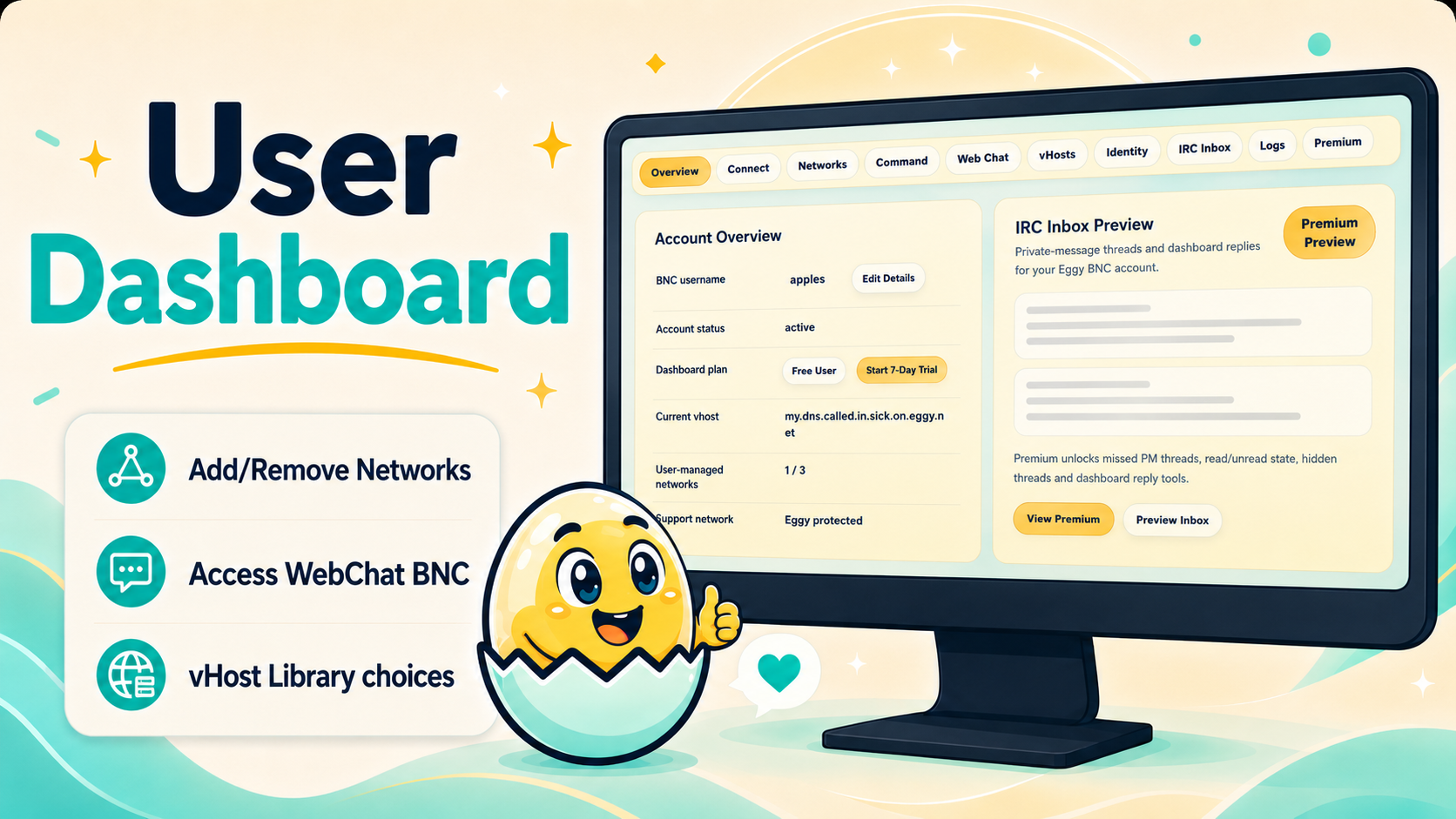
When you create an Eggy BNC account, you do not just get a connection host and a password. You also get your own user dashboard — a clean control centre for managing your BNC without needing to dig through complicated IRC commands or wait for manual changes.
The dashboard is designed to give users more control, more convenience, and a much easier way to manage their IRC setup from one place.
Whether you are adding networks, copying quick connect commands, launching WebChat, choosing a vHost, checking identity options, or catching up through IRC Inbox, your dashboard keeps everything organised and easy to access.
Networks
The Networks area is where you manage the IRC networks connected to your BNC.
This section lets you add and manage your saved IRC networks directly from the dashboard. Instead of manually editing complicated configuration files or relying on someone else to make changes, you can control your own setup through a simple interface.
From the Networks area, users can manage key network details such as the IRC server address, port, SSL/TLS settings, nickname details, and saved connection information. This makes it easier to keep your BNC connected to the networks you actually use.
You can also update existing networks when details change, reconnect networks when needed, and keep your setup tidy without having to start again from scratch.
For users who are new to BNCs, this makes the process much easier. For experienced IRC users, it saves time and gives you a quicker way to manage your account without jumping between multiple tools.
Command
The Command section is built for quick connection access.
Instead of trying to remember the correct BNC connection format, the dashboard gives you ready-to-use command codes that you can copy and paste into your IRC client.
This is especially useful because BNC connections often use a specific format, such as your username, network name, server host, port, and SSL details. The Command area helps remove the guesswork by presenting the correct command clearly.
That means less time fiddling with connection settings and more time actually getting online.
If you use a normal IRC client, the Command section is one of the quickest ways to get connected through your Eggy BNC. Copy the command, paste it into your IRC client, add your password where required, and connect.
Web Chat
The Web Chat section gives users another way to access IRC through their BNC without needing a dedicated IRC client installed.
The flow is simple:
Dashboard → Web Chat → Launch Chat → Choose a saved network → Connect through your BNC
Once you have saved networks on your account, the Web Chat area lets you launch chat for those networks directly from the dashboard. This is ideal if you are away from your main computer, using a phone or tablet, borrowing a laptop, or just want fast access without installing anything.
Eggy BNC WebChat is powered by KiwiIRC, giving users a modern browser-based IRC experience that works well across desktop and mobile devices.
Your normal IRC client can still be your main setup, but WebChat gives you a convenient fallback when you need quick access from anywhere.
No installation.
No manual client setup.
No hunting for server details.
Just open the dashboard, choose Web Chat, and get back into your BNC.
vHosts
The vHosts area gives users freedom over how their outbound IRC hostname appears when connecting through their BNC.
Eggy BNC includes a vHost library, giving users a selection of available hostnames they can browse and choose from. This makes it easy to personalise your IRC appearance without needing to manually request a change.
Pick the vHost you want, click Apply & Reconnect, and the dashboard automatically applies the change and reconnects your BNC so the new vHost can take effect.
You can change your vHost freely from the library whenever you want. There is no need to wait for manual approval every time you fancy switching things up.
It is simple, flexible, and gives users control directly from the dashboard.
Identity
The Identity area helps users manage how they appear through their BNC.
This can include identity-related details such as nicknames, ident information, real name/GECOS options where available, and other account-facing connection details.
For users who want a cleaner or more personalised IRC presence, the Identity section makes those settings easier to understand and manage from one place.
Rather than hiding everything behind technical IRC commands, the dashboard presents the important identity controls in a way that is easier to work with.
IRC Inbox
The IRC Inbox gives users a dashboard-based way to catch up with private IRC activity where available.
Instead of missing everything when you are away from your IRC client, IRC Inbox is designed to help users review private-message activity connected to their BNC and manage conversations more easily from the dashboard.
This is especially useful for users who stay connected through their BNC but are not always actively watching their IRC client.
IRC Inbox helps make the BNC feel more practical as an always-on connection tool, giving users another layer of convenience beyond simply staying connected.
A Dashboard Built for Real Use
The Eggy BNC dashboard is not just there to look nice. It is built to make everyday BNC use easier.
You can manage networks, copy quick commands, launch WebChat, browse and apply vHosts, update identity settings, and use IRC Inbox tools from one central place.
For new users, it makes getting started less confusing.
For existing users, it makes managing a BNC faster and more convenient.
Eggy BNC gives users more than just a connection. It gives them a dashboard designed to keep the whole experience smooth, simple, and flexible.