Your vHost is the hostname people see when you connect through Eggy BNC. With the dashboard vHost tools, you can choose a hostname, apply it, and let Eggy BNC automatically reconnect your IRC network so the change takes effect cleanly.
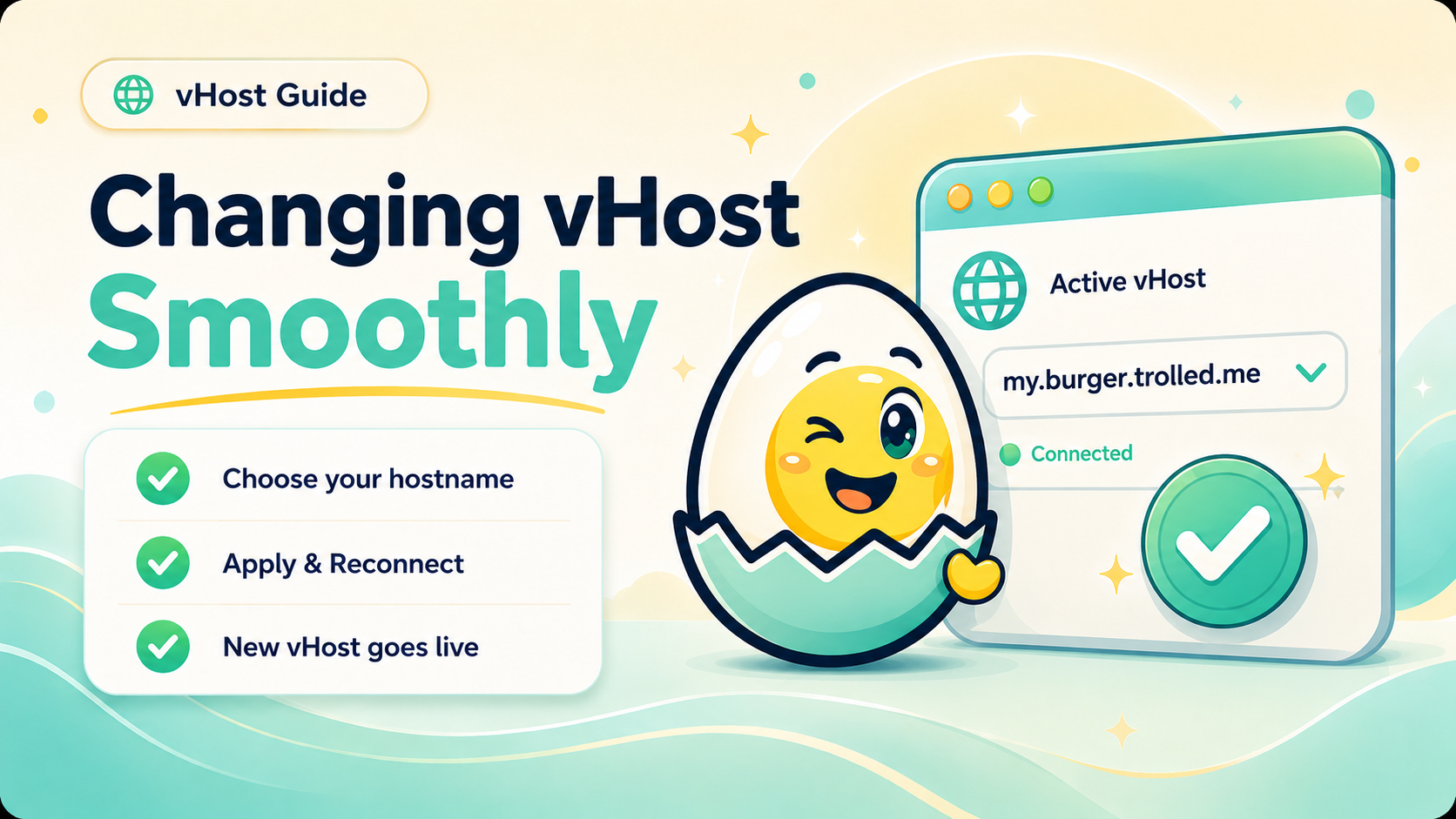
Your Eggy BNC vHost is part of how your IRC connection appears to other users. Instead of exposing a plain connection hostname, your account can use a selected vHost such as a custom Eggy hostname or one of the available themed hostname options.
This gives your connection a cleaner identity and makes your BNC feel more personal.
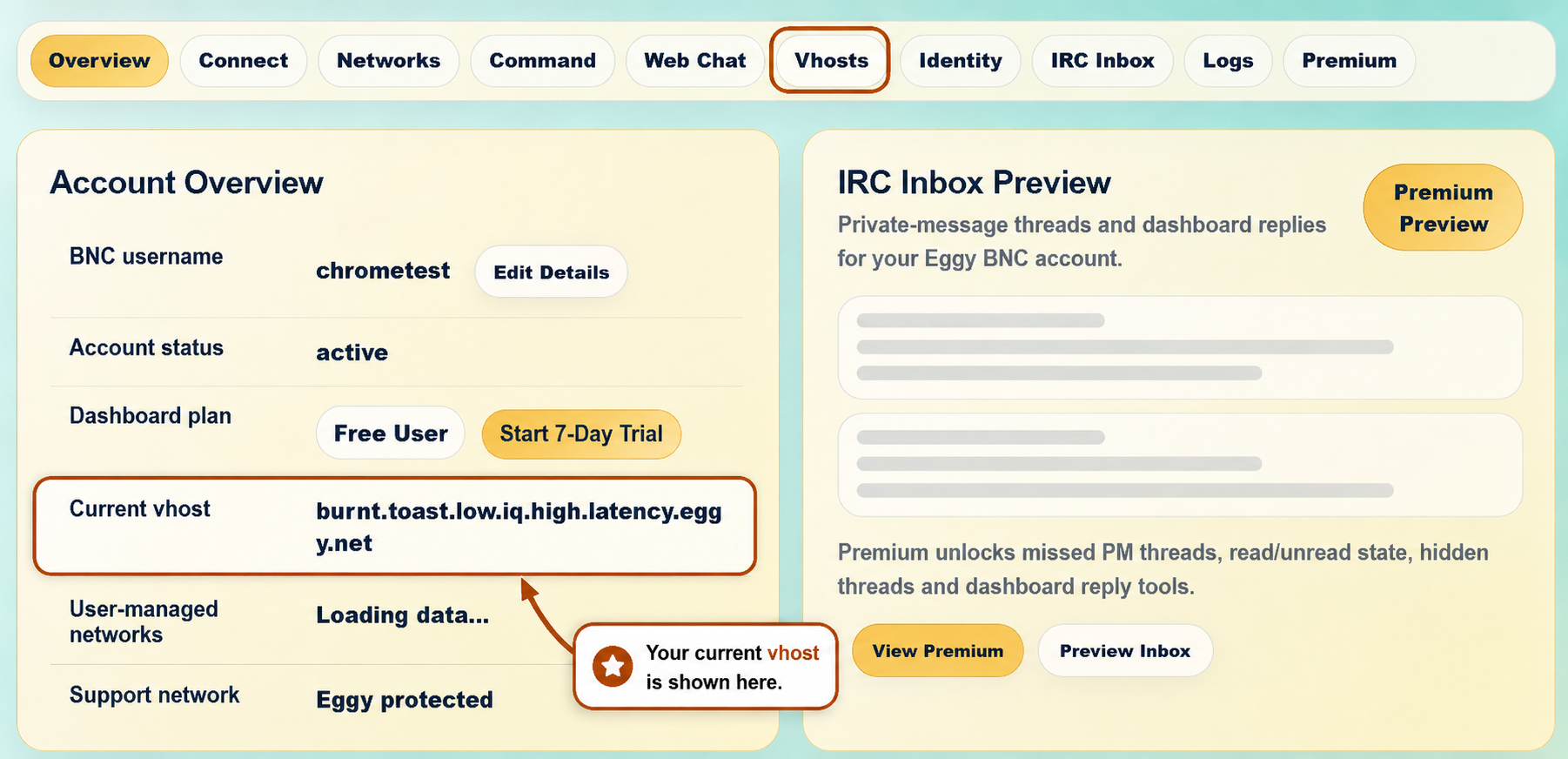
Changing a vHost is simple, but there is one important detail to understand: a hostname change only becomes active after the IRC network reconnects. That is because the hostname is attached to the live IRC connection. If the network is already connected, the new hostname cannot fully appear until that connection refreshes.
That is why the Eggy BNC dashboard uses Apply & Reconnect.
When you choose a new vHost and press Apply & Reconnect, Eggy BNC saves the hostname and automatically reconnects the affected IRC network for you. You do not need to restart ZNC, log out, manually disconnect, or do anything technical.
The dashboard handles the process so the new hostname can go live smoothly.
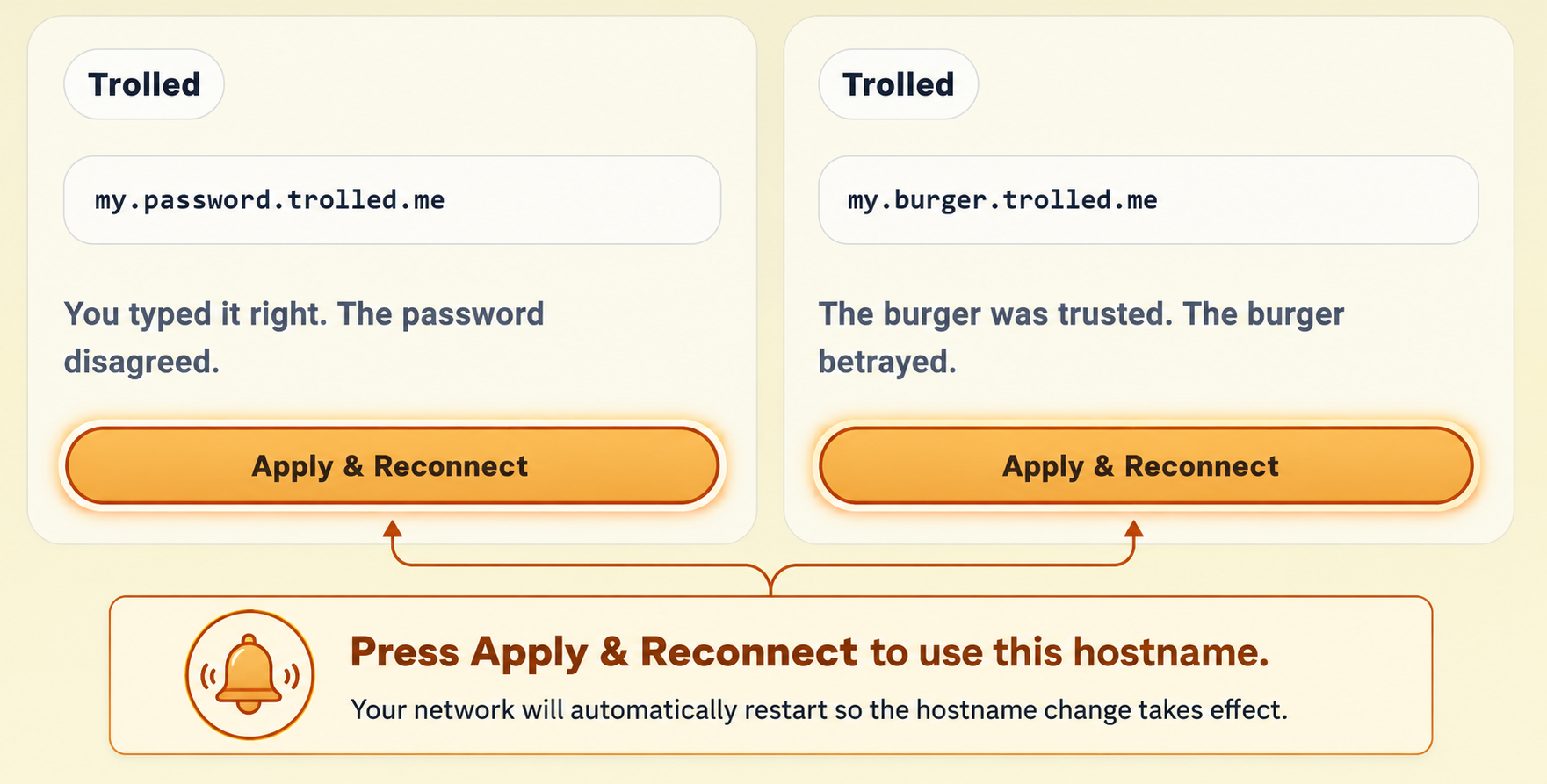
The basic flow is:
Choose your hostname.
Pick the vHost you want to use from the dashboard.
Apply & Reconnect.
Press the button so Eggy BNC can save the change and reconnect the network.
New vHost goes live.
Once the network reconnects, your selected hostname becomes active on IRC.
This makes the vHost system easier to understand and safer to use. The reconnect is not an error, and it does not mean something has gone wrong. It is the step that lets the hostname change properly take effect.
If you are updating your vHost, always use Apply & Reconnect after selecting the hostname you want. That way, your Eggy BNC account uses the new hostname cleanly the next time your IRC network comes back online.